
Overview
#deliver lets you send documents from email without sending the files into the customer’s inbox.
Your approved email address is used to trigger delivery. Documentd then sends the customer a secure access link and stores the documents in their secure document space.
After setup, sending is simple
- Write an email as normal.
- Attach the documents you want to deliver.
- Add
#deliveranywhere in the subject or body. Optionally, include#folder Folder Nameto organise the documents into a folder. - Send the email. Documentd handles secure delivery and customer access.
Before you start: email routing setup
To use #deliver, your organisation first needs a Documentd account.
Once your account is active, configure your email server so that messages containing
#deliver are routed to Documentd.
Microsoft 365 setup
Documentd provides an automated setup process for Microsoft 365 tenancies. This requires admin access so the routing rule can be created securely.
Other email systems
Other email platforms can be configured by creating an equivalent routing rule that forwards or routes matching emails to Documentd.
One-time configuration
Once routing is set up, users simply add
#deliver when sending documents.
How to send a document
After routing has been configured, sending a document through Documentd is deliberately simple.
Create your email
Write the email as normal. Add your customer as the recipient and use a clear subject line.
Attach the documents
Attach the files you want to deliver. These are the documents your customer will be able to access later.
Add #deliver
Add #deliver anywhere in the subject line or body of the email.
Optionally, include #folder Folder Name
to automatically organise the documents for the customer.
Send as normal
Your email server routes the message to Documentd. The customer receives secure access, not the files as inbox attachments.
Example email
Hello,
Please find your policy documents attached.
Kind regards,
Your Company
#deliver #folder Policies
The attachments are processed by Documentd. The customer receives secure access to the documents instead of receiving the files directly in their inbox.
Optional: organise documents as you send
You can optionally place documents into folders at the point of sending by adding a #folder instruction to your email.
Add a folder instruction
Add #folder Reports anywhere in the subject or body of your email.
Send as normal
Documentd places the document into the specified folder in the customer vault.
Hello,
Please find your report attached.
Kind regards,
Your Company
#deliver #folder Reports
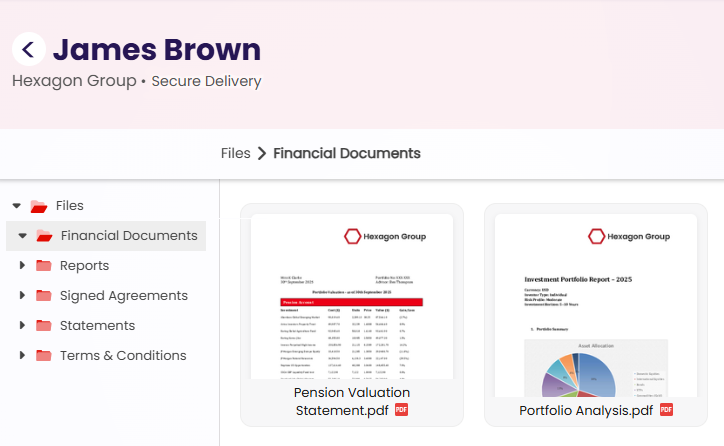
Folder instructions place documents into the relevant folder in the customer vault.
What happens next
The customer receives a secure access link
They are notified that documents are available and can open them securely.
Documents stay out of the inbox
Files are delivered through Documentd rather than sitting in Gmail, Outlook, or other email storage.
Documents can be found again
Customers can return later to access their documents in their secure document space.
How this differs from copy-in delivery
Copy-in delivery is useful when you are already emailing documents to a customer. #deliver is for when you want to use email as the sending tool, but keep the documents out of the customer’s inbox.
Copy-in delivery
The customer receives the email and attachments as normal, and Documentd also stores the documents.
#deliver
Documentd delivers the documents securely instead of sending them as inbox attachments.
Good to know
- Your customers are not charged for receiving documents.
- You can use email sending first and move to the API later.
- Documents are counted for pricing purposes when they are delivered.
- Larger files may count as multiple documents depending on size.
Next step
See what your customers receive after you send a document.